






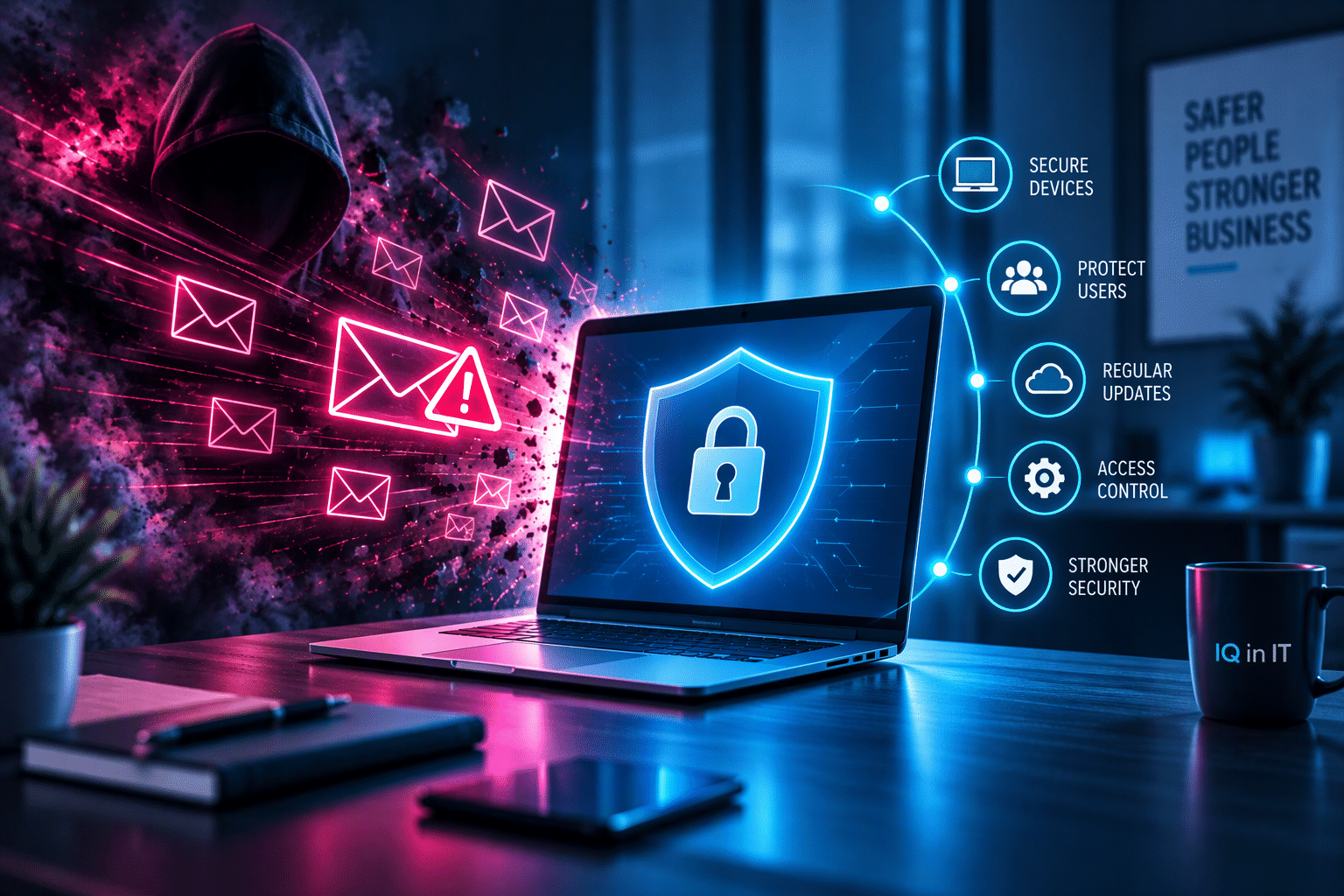
Business Email Account Compromised? Changing the Password Might Not Be Enough
If you think someone has accessed your business email account, changing the password is an important first step.
However, do not stop there.
An attacker may have changed the account settings, created an email forwarding rule or connected an unauthorised application. They may also have added another way to sign in later.
Therefore, changing the password may not remove everything the attacker changed.
For a business, the consequences can be serious. A compromised email account can expose confidential information, enable fraudulent payment requests and disrupt conversations with customers or suppliers.
An attacker may also use the account to target other employees.
So, change the password, but then ask your IT provider to check the whole account.
Why changing your email password may not be enough
A password protects one route into an email account. However, business email platforms often provide several other forms of access.
For example, an account may remain connected to:
- Signed-in devices
- Email applications
- Third-party business applications
- Mailbox delegates
- Recovery email addresses
- Authentication methods
In addition, an attacker may create rules that automatically forward or hide messages.
As a result, a password change should form part of the recovery process rather than the entire response.
1. Sign the account out of other devices
Think about how you normally use your email.
You probably do not enter your password every time you open Outlook or check email on your phone. Instead, your device remembers that you have already signed in.
Unfortunately, an attacker’s device may also remain connected.
Therefore, your IT provider should review active sessions and sign the affected account out of all devices and applications.
The main point is simple:
Do not assume that changing the password automatically signs everyone else out.
2. Check for email forwarding rules
Next, ask your IT provider to check where the mailbox sends incoming email.
An attacker may create an automatic forwarding rule that sends copies of your messages to an external email address.
They may target emails that mention:
- Invoices
- Bank details
- Payments
- Payroll
- Password resets
- Customer information
This activity can be difficult to spot because the mailbox may continue to work normally.
In addition, an attacker could create rules that hide particular messages. For example, a rule might move a customer’s reply about a suspicious invoice into another folder.
Changing the password does not remove the need to check these settings.
Your IT provider should review:
- Inbox rules
- External forwarding
- Mailbox-level forwarding
- Rules that move or delete messages
- Rules that mark messages as read
- Unusual blocked or safe sender entries
They should remove or investigate anything the business does not recognise.
3. Review connected applications
Most businesses connect email accounts to other services.
For example, an employee may connect their email to:
- A CRM platform
- A calendar application
- A mobile email application
- A document service
- A reporting tool
- Another business application
Usually, these connections are legitimate.
However, an attacker may trick an employee into approving access for an untrusted application. The employee may not need to give the application their password directly. Instead, they may click a button that grants access to business information.
Therefore, after a suspected compromise, your IT provider should review the applications connected to the account.
They should investigate anything the business does not recognise or no longer uses.
A professional name, website or logo does not prove that an application is trustworthy.
4. Check who can access the mailbox
Businesses often give more than one person access to a mailbox.
For example, an executive may give an assistant access to their email. Similarly, a finance team may share a mailbox, or an employee may have permission to send messages on another person’s behalf.
These features are useful when administrators configure them intentionally.
However, unauthorised mailbox permissions give an attacker another route into the account.
Another user may access the mailbox with their own login details. Consequently, changing the mailbox owner’s password may not remove that access.
Your IT provider should check who can:
- Read the mailbox
- Send email from it
- Send email on behalf of it
- Manage its settings
If nobody can explain why someone has access, your IT provider should investigate the permission.
5. Check for new recovery and sign-in methods
An attacker may try to create a way back into the account.
For example, they could add an unfamiliar:
- Telephone number
- Recovery email address
- Device
- Authentication method
- Application password
Think of these as spare keys.
Changing the main password helps. However, it may not help if someone has created another legitimate-looking way to access the account.
Therefore, compare the account’s recovery and sign-in details with the employee. Remove or investigate anything that neither the employee nor your IT team recognises.
What should you do if a business email account is compromised?
Act quickly.
Do not expect the employee to investigate everything themselves. Some important security settings are only available to the person or company that manages the email system.
If you suspect someone has accessed a business email account, contact your IT provider or administrator immediately.
Then, work through the incident in a controlled way.
Step 1: Contain the account
First, stop the problem from getting worse.
Depending on the circumstances, your IT provider may temporarily block access to the account. They may also sign it out of active sessions while they investigate.
The employee may lose access for a short time. However, a brief interruption is better than leaving an attacker able to read, send or delete business email.
Step 2: Change the password
Create a new, strong password that the employee has not used elsewhere.
If they used the compromised password for another website or business system, change it there as well.
Finally, share any new credentials securely. Do not send the password to the mailbox you are trying to protect.
Step 3: Review the account for suspicious changes
Your IT provider should check whether anyone changed the account or mailbox.
This review should include:
- Automatic email forwarding
- Inbox rules that move, hide or delete messages
- Mailbox access permissions
- Send-as permissions
- Send-on-behalf permissions
- Connected applications
- Recovery email addresses
- Authentication methods
- Connected devices
- Automatic replies
- Email signatures
You do not need to know every technical term.
Your IT provider should know where to look.
Your role is to report the problem quickly and help them understand what looks normal.
Find out what happened
Once your IT provider has contained the immediate threat, investigate what happened.
Look for:
- Emails the employee did not send
- Missing or deleted emails
- Hidden messages
- Unexpected replies from customers or suppliers
- Password-reset messages
- Unusual invoices
- Changed payment details
- Messages involving payroll
- Unfamiliar sign-in notifications
Your IT provider should also review the available account and security history. This information may help them establish when the compromise started and what the attacker did.
Do not assume the incident began when the employee first noticed something unusual. The attacker may have accessed the account earlier.
Most importantly, understanding the timeline helps the business decide whether to contact customers, suppliers, employees, banks, insurers or other relevant parties.
Check whether the attacker sent fraudulent emails
Sometimes, the attacker wants more than the information inside the mailbox.
Your business identity may be even more valuable.
For example, imagine that a supplier receives an email from your genuine business address. The message asks them to pay an invoice into a different bank account.
Because the email came from the real account, the request may appear convincing.
Therefore, check whether the compromised account sent suspicious messages.
Pay particular attention to emails involving:
- Invoices
- Payments
- Bank details
- Payroll
- Gift cards
- Password changes
If you find suspicious messages, contact the people involved through a separate, trusted method. For example, call a known telephone number rather than replying to the suspicious email.
If someone may have transferred money fraudulently, contact the relevant bank or payment provider immediately.
Secure the account before returning to normal
Before the employee resumes normal work, make sure your IT provider has removed unauthorised access and suspicious account changes.
In addition, protect business email accounts with multi-factor authentication, commonly known as MFA.
MFA adds another authentication step after the password. For example, the employee may approve a sign-in through an authenticator application or another configured method.
However, remember one important distinction:
MFA helps to protect an account, but it does not replace the investigation.
MFA does not automatically remove forwarding rules, unknown applications or mailbox permissions that an attacker has already added.
Therefore, all the earlier checks still matter.
How can you reduce the risk of another email compromise?
You cannot remove every cyber risk. However, you can make business email accounts harder to compromise.
You can also make incidents easier to detect and contain.
Ask your IT provider to:
- Enable MFA across all business accounts
- Restrict unnecessary external email forwarding
- Control which applications can connect to company accounts
- Apply stronger protection to accounts that handle payments
- Review administrator and mailbox permissions
- Keep devices and applications updated
- Provide practical cyber awareness training
- Monitor suspicious sign-in and forwarding activity
- Create a clear incident-reporting process
Just as importantly, create a culture where employees feel comfortable reporting mistakes quickly.
For example, employees should know what to do if they:
- Receive an MFA request they did not initiate
- Notice an email they did not send
- See an unfamiliar sign-in
- Click a suspicious link
- Enter credentials into a site they later distrust
Fast reporting gives your IT team a better chance of containing the incident before it becomes a larger business problem.
The most important thing to remember
If you remember only one thing from this article, make it this:
If a business email account has been compromised, change the password, but do not assume the problem is solved.
Get your IT provider involved quickly.
Ask them to check:
- Active sessions
- Email forwarding
- Inbox rules
- Mailbox permissions
- Connected applications
- Recovery methods
- Suspicious messages
- Account activity
You do not need to understand every technical detail.
Instead, you need to know what to look for, who to contact and when to act.
Worried about a business email account?
If you already have an IT provider, report the suspected compromise to them immediately.
If you need additional support, IQ in IT can help investigate and secure your Microsoft 365 environment. We can also help improve your email security and put practical controls in place to reduce future risk.
Contact IQ in IT to discuss a Microsoft 365 security review.
Frequently Asked Questions
Is changing my email password enough after an account compromise?
Not always.
Changing the password is important. However, your IT provider should also check active sessions, forwarding rules, mailbox permissions, connected applications and recovery methods.
Can someone still receive my emails after I change the password?
Potentially.
For example, an attacker may have created an automatic forwarding rule. The rule could continue sending copies of incoming messages until your IT provider removes it.
Can someone access my email without knowing my current password?
Potentially.
A connected application, mailbox delegate or existing session may provide another form of access. Therefore, your IT provider should investigate the whole account rather than relying only on a password change.
Should I delete a compromised business email account?
Usually, you should not rush to delete it.
Your IT provider should secure the account and investigate what happened first. The account may contain information that helps establish the nature and extent of the incident.
Is MFA enough to keep business email secure?
MFA adds an important layer of security. However, no single control provides complete protection.
After a compromise, your IT provider still needs to review the mailbox and remove suspicious changes.






Recent Comments