






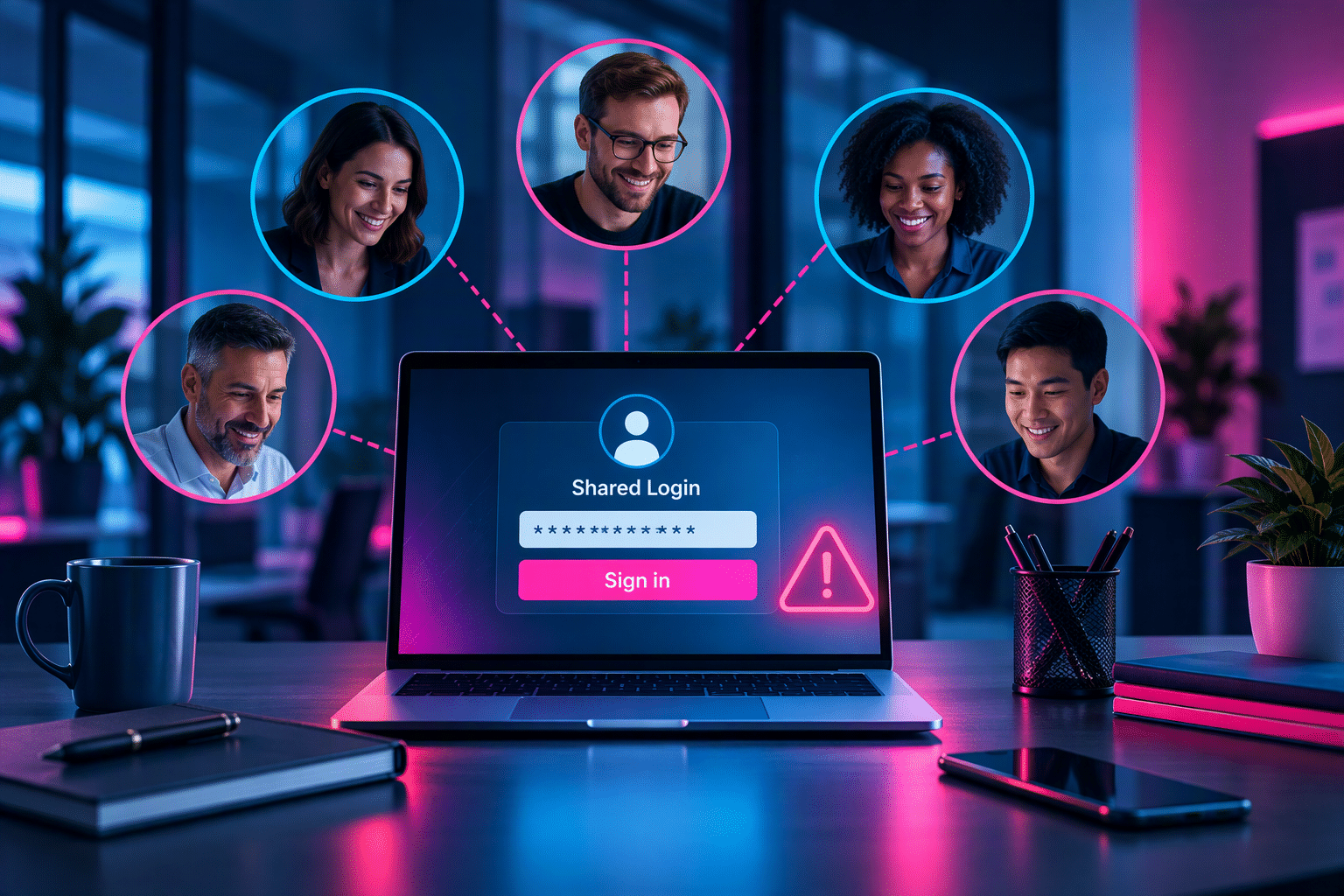
Shared Logins: The Security Risks and How to Replace Them
Shared logins usually start with a small, practical decision.
Someone needs access to a system, so a colleague sends them the username and password. Perhaps they need to send an invoice, update the website or check a customer record. Therefore, sharing the existing login seems like the quickest way to get the job done.
At first, everything works.
However, the problems often appear later.
A payment changes. A customer record disappears. Someone signs in from an unfamiliar location. You check the account history, but every action appears under the same username.
Several current employees might know the password. Former employees may remember it too. Consequently, nobody can confidently say who accessed the account or made the change.
Shared logins often begin as a quick solution. Over time, however, they make accounts harder to secure, monitor and manage.
Why shared logins can become a problem
When several people use the same account, you lose some of the visibility and control that individual user accounts provide.
Shared logins can make it harder to:
- identify who performed an action
- investigate unusual activity
- manage multi-factor authentication (MFA)
- remove access when someone leaves
- control individual permissions
- keep passwords secure
- maintain clear accountability
Fortunately, businesses can replace many shared accounts without making access more difficult for employees.
Why do businesses use shared logins?
Most businesses do not deliberately create a collection of shared accounts.
Instead, they accumulate them over time.
For example, a company may buy a piece of software when it only has two employees. The original user creates one account and later gives the password to the next person who needs access.
As the company grows, sharing the existing password often feels easier than reviewing the setup or creating individual users.
Other common reasons include:
- the software only supports one user
- additional users cost more
- nobody has configured the individual accounts already available
- employees do not know how delegated access works
- several people need access to the same email address
- an old account gradually becomes the team’s default login
This approach might work for years without causing an obvious problem.
However, that does not make it secure.
Shared logins make it harder to see who did what
Imagine five employees use the same login.
The system might record that the account downloaded a report, changed an invoice or edited a customer record. However, it may not tell you which employee performed that action.
That missing information creates problems even when nobody has done anything wrong.
For example, a simple mistake takes longer to investigate because you need to ask several people what they were doing at the time.
More importantly, suspicious activity becomes much harder to trace.
If someone exports customer information or changes bank details, you need to establish whether an employee, former employee or attacker performed the action.
Individual accounts make that process much easier because each person uses their own identity.
As a result, your IT team can investigate activity against a specific user rather than trying to work out who happened to know a shared password.
One shared password can unlock everything in the account
A shared password needs to reach everyone who uses the account.
As a result, employees might:
- send it by email
- paste it into Teams or another chat
- save it in a shared document
- store it in a browser
- write it down
- reuse it on another service
Every additional copy creates another place where someone could expose or steal the password.
Moreover, the risk grows as more people receive it.
For example, one employee might enter the password on a compromised computer. Another might save it in a personal browser profile. Someone else might reuse it elsewhere.
If an attacker steals the shared password, they gain the same access as everyone else who uses the account.
Individual accounts give your IT team much better visibility. If one employee’s account suddenly shows unusual activity, your IT provider can investigate that specific identity and disable it when necessary.
With shared logins, however, disabling one account could stop an entire team from working.
Shared logins make offboarding harder
Individual accounts make employee offboarding considerably simpler.
When an employee leaves, your IT provider can disable their account and remove their permissions without affecting anyone else.
A shared login creates a different problem.
If the departing employee knows the shared password, you need to change it. Then, you need to provide the new password securely to everyone who still needs access.
In addition, changing the password may affect applications, devices, browser sessions or automated integrations.
Because password changes can cause inconvenience, some businesses postpone them.
That creates unnecessary risk.
Instead, give employees individual accounts wherever the platform allows it. Then, when someone leaves, you can remove their access without changing how everyone else works.
MFA works better with individual accounts
Multi-factor authentication, or MFA, adds another security check when someone signs in.
Depending on the system, that could include:
- an authenticator app
- a security key
- a passkey
- biometric verification
- another approved authentication method
MFA makes it much harder for someone to access an account with a stolen password alone.
However, shared logins can make MFA awkward.
For example, an approval request might go to one employee’s phone while another employee tries to sign in. Staff may then start forwarding codes or approving requests for colleagues.
That weakens the purpose of verifying the person who actually wants to access the account.
Individual accounts solve this problem more cleanly. Each employee signs in with their own identity and uses their own authentication method.
As a result, you can remove one employee’s access without affecting anyone else.
Shared accounts can give people too much access
When several people use a single account, everyone generally receives the permissions assigned to it.
For example:
- someone who only needs to view customer records might also be able to export them
- a marketing employee who needs to update website content might also receive administrator permissions
- someone who processes invoices might gain access to wider financial settings
Individual accounts let you match access to each employee’s role.
This approach follows the principle of least privilege: give people the access they need to perform their work, but no more.
Therefore, businesses should regularly review user permissions, especially when employees change roles or responsibilities.
Regular reviews can also identify users who still have access they no longer need.
A shared mailbox doesn’t need a shared password
Shared email addresses often cause confusion.
Several employees may need to read and reply to messages sent to addresses such as:
- accounts@
- sales@
- support@
- enquiries@
However, they do not all need the same username and password.
Modern business email platforms can allow authorised employees to access a shared mailbox while they continue signing in through their individual accounts.
This creates a much cleaner setup.
Each employee keeps their own identity, while an administrator controls who can access the mailbox.
When someone leaves, the administrator simply removes that person’s permission without changing access for everyone else.
Other business platforms may provide similar functionality through:
- delegated access
- shared inboxes
- user roles
- groups
- team access
- user permissions
Therefore, before sharing a password, check whether the platform already offers a safer alternative.
Don’t casually share administrator passwords
Administrator accounts deserve additional protection because they provide much greater control.
Depending on the system, an administrator may be able to:
- create or remove users
- change security settings
- access sensitive information
- install applications
- change permissions
- disable other people’s access
As a result, an attacker can cause far more damage if they compromise an administrator account.
Give each administrator their own named account wherever possible.
In addition, staff should use standard accounts for everyday work and only use administrator access when a task requires it.
Your IT provider should also review administrator access regularly.
Employees often keep permissions from previous roles simply because nobody removed them when their responsibilities changed.
Regular access reviews help prevent unnecessary privileges from accumulating over time.
What if the software only provides one login?
Some older applications, devices and specialist services do not support individual accounts.
Replacing those systems may take time. However, that doesn’t mean you should send the password around by email or chat.
Instead, store the shared credential in an approved business password manager.
Then:
- Give access only to employees who genuinely need it.
- Require each employee to use their own password manager account.
- Protect those accounts with MFA.
- Assign an owner to the shared credential.
- Document what the account controls.
- Review access regularly.
- Change the password when authorised users leave.
- Check periodically whether the supplier now supports individual accounts.
A business password manager also helps keep shared credentials out of inboxes, chat conversations and documents.
Most importantly, treat the shared login as an exception rather than the default way to give employees access.
Service accounts need different handling
Not every account without a person’s name represents a problematic shared login.
Your IT provider may also identify service accounts.
Software, devices and automated processes use these accounts rather than employees.
For example, a backup application might use an account to access a server. Similarly, one business application might use an account to exchange information with another.
Therefore, a properly managed service account differs from a username and password that several employees share.
A service account should:
- have a documented purpose
- have a named owner
- receive only the permissions it needs
- keep its credentials secure
- avoid unnecessary employee access
- have a process for replacing exposed credentials
Your IT provider should identify these accounts before removing old or unfamiliar logins.
Otherwise, disabling an account without checking its purpose could interrupt an important business process.
How to replace shared logins without disrupting work
You do not need to replace every shared login overnight.
Instead, work through them systematically.
1. Find your shared logins
Start with the systems your business relies on every day, including:
- accounting software
- CRM and customer systems
- website administration
- social media
- cloud storage
- HR systems
- payment platforms
- specialist business applications
Also check business password managers, browser password stores, old spreadsheets, internal documentation and software subscription records.
You may uncover accounts that employees have shared for years simply because nobody has reviewed them.
2. Record who uses each account
For every shared account, record:
- who uses it
- why they need access
- what information it contains
- what permissions it provides
- whether MFA protects it
- who owns it
This process will quickly reveal which accounts create the greatest risk.
3. Deal with high-risk accounts first
Prioritise shared logins that provide access to:
- administrator functions
- financial systems
- customer information
- employee information
- sensitive business data
- cloud infrastructure
These accounts can cause the greatest disruption or expose the most sensitive information if someone compromises them.
Therefore, address them before lower-risk accounts.
4. Create individual user accounts
Where the platform supports individual users, create a named account for each employee.
Then, give each person only the permissions their role requires.
This gives you clearer accountability and much better control over access.
It also makes future role changes and offboarding considerably easier.
5. Set up MFA
Next, configure MFA for every user wherever the platform supports it.
For important business accounts, use strong authentication methods that fit the system and your security requirements.
Most importantly, each employee should authenticate using their own account rather than relying on another person’s authentication method.
6. Test the new access
Before removing the old shared account, ask users to confirm that their individual accounts provide everything they need to work.
If they cannot complete a normal task, correct the permissions before you remove the old login.
This step helps prevent unnecessary disruption.
7. Secure accounts that must remain shared
Sometimes you cannot remove a shared account immediately.
In that case:
- put the password in an approved business password manager
- restrict access to the smallest practical group
- assign an account owner
- document important dependencies
- monitor usage where possible
- review access regularly
- change the password when authorised users change
Finally, include shared-account checks in your onboarding, role-change and offboarding processes.
Otherwise, shared logins can quickly return when someone needs access and nobody knows the correct way to provide it.




Recent Comments